 Claude Duet
How to summarize any web page in Chrome
Most pages are longer than they need to be. Here is a fast, repeatable way to get the key points of any article without losing the original.
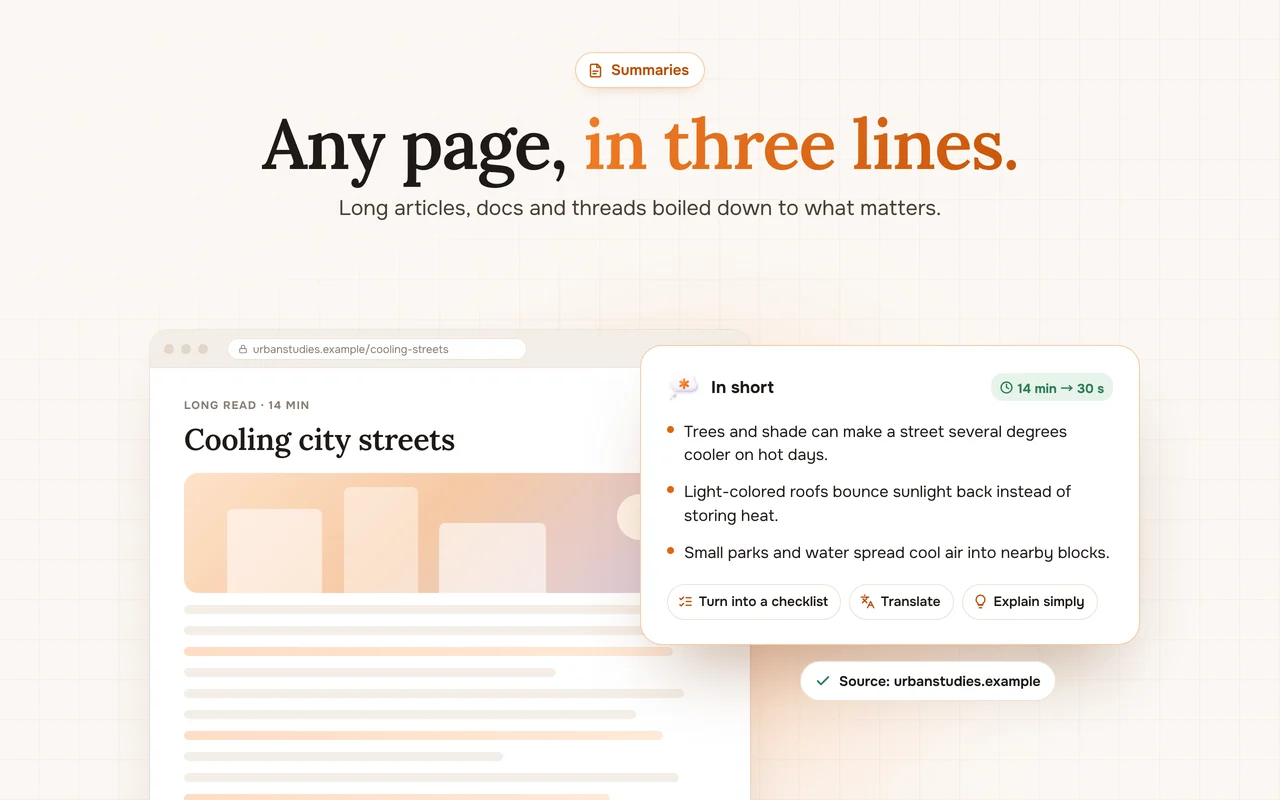
Why summarize in the side panel
Copying text into a separate chatbot breaks your flow: you lose the page, the formatting and your place. A side panel keeps the page on the left and the summary on the right, so you can check any point against the original in a glance.
Step by step
- Open the article, documentation page or thread you want to understand.
- Open Claude Duet with the toolbar icon or press Alt + A.
- Press Summarize. You get three to five key points in seconds.
- Ask a follow-up, for example “what is the evidence for point two?”.
Prompts that produce better summaries
Generic summaries are often vague. These prompts tend to work better:
- “Summarize in three bullets, each under 20 words.”
- “What is the main claim and what supports it?”
- “List every number and date mentioned, with context.”
- “Turn this into a checklist I can act on today.”
Summarize just a part of the page
Select a paragraph or a table and choose Explain or Summarize from the pop-up that appears. This works well for terms of service, long product specs and comment threads.
When not to rely on a summary
Summaries are a filter, not a replacement. For contracts, medical information or anything you will act on with money, use the summary to find the important parts, then read those parts in full.